Reliable table interactions
When you interact with a table during a test recording, AIVA can recognize individual cells instead of treating them as regular page elements. This helps AIVA find the correct row and column even when the table content changes between test runs. You can configure this behavior to match your requirements.
Note: Currently, table recognition is in Beta.
To make table interactions predictable and reliable:
- Use By content when AIVA should interact with a specific row even if it changes position between test runs.
- Example: There is a table of people, and the test should edit a specific person.
- Use By position when AIVA should always interact with a specific row number regardless of its content.
- Example: There is a table of people, and the test has sorted it by creation time with the newest first. To delete the newest person, the test clicks the trashcan in row 1.
- Choose rows with distinctive text when using By content.
- Keep the table header visible; for By position, a title can stand in when there is no header.
- Keep assert selections inside a single cell — selections spanning multiple cells fall back to regular element recognition.
If you're not sure which option to use, start with By content. It handles more types of table changes and is usually the safer choice.
For more information about how AIVA recognizes elements in general, see How AIVA finds elements on the page.
How table recognition works
When AIVA records a test scenario, most elements on a page are recognized as regular elements, e.g., buttons, icons, input boxes, checkboxes, etc. AIVA identifies them using their visual appearance and text, regardless of where they appear on the screen.
Tables are different because rows repeat and many cells look alike. Also, the content of a table can change even in a controlled testing environment, and tests must still be executed reliably. When you interact with a cell inside a recognized table, AIVA can use information about the table structure to identify the correct row and column during replay.
Table recognition depends on AIVA detecting the table's header row (or, for By position, a table title):
- By content requires a header row. The table must have one (without it, AIVA cannot robustly locate the other rows and their content), and AIVA must detect it — unusual or non-standard headers can prevent detection even when a header is clearly there.
- By position works with a detected header row or, when there is no header, a table title.
If AIVA detects neither, it discards the table recognition and continues with regular element recognition rather than working with an incomplete table. The step still works: the element is located by its own text and appearance, like any other element.
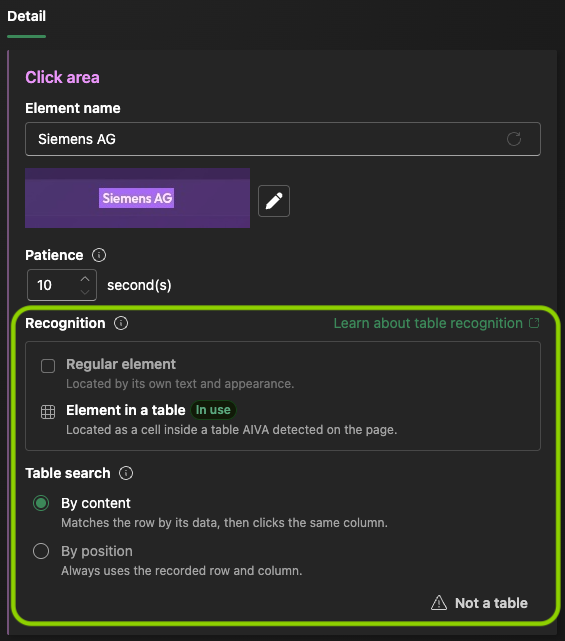
You can see and adjust how AIVA recognizes a table cell in the Recognition section of Step detail.
Choose the right Table search mode
For elements inside a table, the Table search setting determines how AIVA finds the correct row during replay.
| Use By content when... | Use By position when... |
|---|---|
| You care about a specific row, wherever it appears. | You care about a specific position, whatever it contains. |
| Rows may be added, removed, or reordered. | The target row always stays in the same position. |
| Each row contains distinctive text. | Row contents may change between test runs. |
| Examples: customers, products, orders. | Examples: the first row in a results list, a fixed dashboard table. |
By content
With By content, AIVA identifies the row by its data and then interacts with the target column in that row.
This mode works best when the row contains distinctive text that is unique within the table, such as:
- Names
- Email addresses
- Order IDs
- Product names
- Descriptions
When recording, choose a row that contains this kind of information whenever possible.
Text that repeats across multiple rows, such as status values ("Open", "Active"), prices, or simple numbers, is usually a weaker identifier. If several rows look the same, AIVA may not be able to reliably determine which row to use.
By position
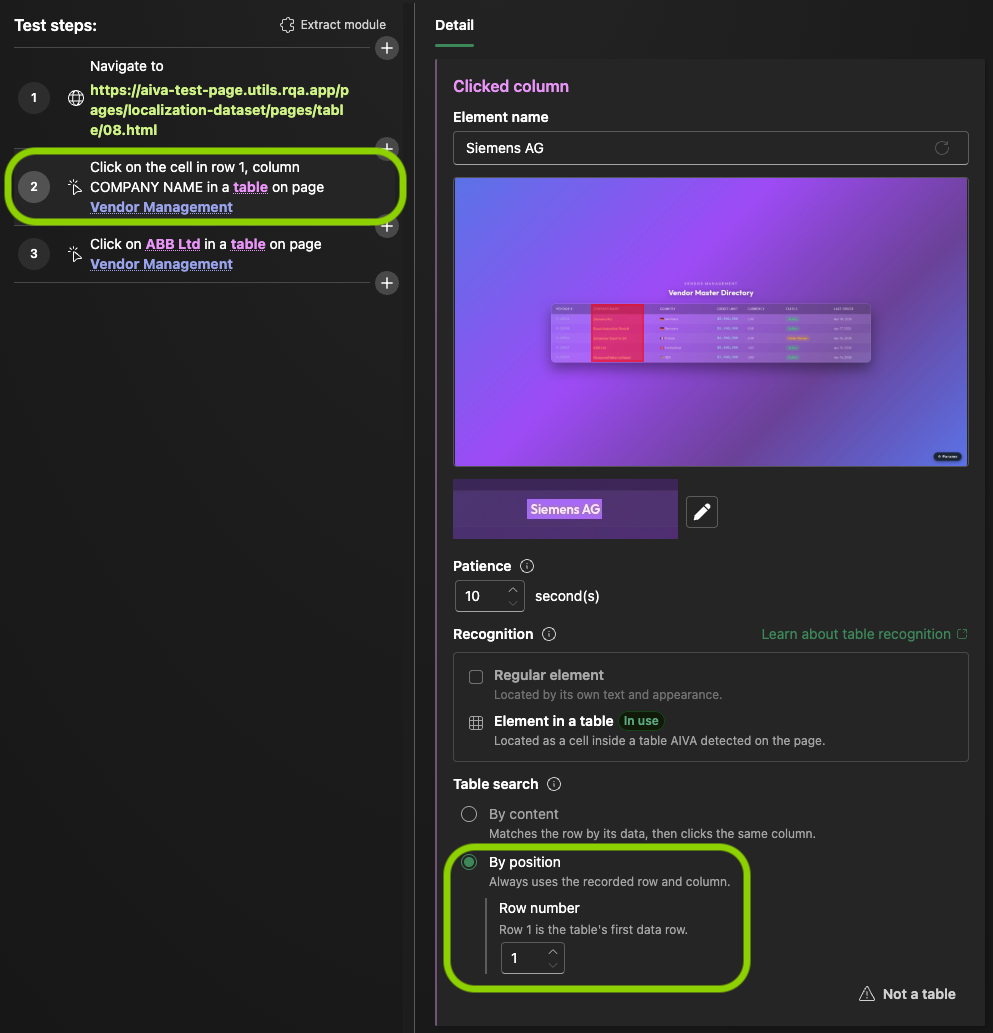
With By position, AIVA always interacts with the recorded row and column.
Use this mode when the row's location is stable but its contents may change between runs.
For example:
- The first row in a "Latest results" table
- A fixed summary row
- A dashboard table where specific data always appears in the same position
Keep headers or titles visible for By position
For By position to work, AIVA must be able to identify the table consistently.
AIVA uses either:
- The table's header row, or
- The table's title, if no header is present
When recording:
- If the table has a header, keep both the header and the target row visible.
- If the table has a title but no header, keep the title and the top of the table visible.
If AIVA cannot detect either a header or a title, By position is not available for that table.
By position currently depends on a detected table header or title, and some table scenarios are not fully supported yet. See Known limitations for the latest restrictions and workarounds.
Keep assert selections inside a single cell
Rectangle-based assertions, such as Assert text and Assert image, use table recognition only when the selected area stays within a single table cell.
Verify a single cell
To verify the contents of a specific cell:
- Draw the assertion rectangle entirely inside that cell, or
- For Assert text, click the text directly instead of drawing a rectangle
The assertion can then use By content or By position like other table interactions.
Verify multiple cells
If the selected area spans multiple cells, AIVA treats the selection as a regular page element instead of a table cell.
Use this approach when you want to verify:
- An entire row
- Multiple columns
- A larger table region
Verify how AIVA recognized the step
After recording a step, check the Recognition section of Step detail.
Confirm that:
- AIVA detected the table correctly.
- The step is recognized as a table cell.
- The expected Table search mode is selected.
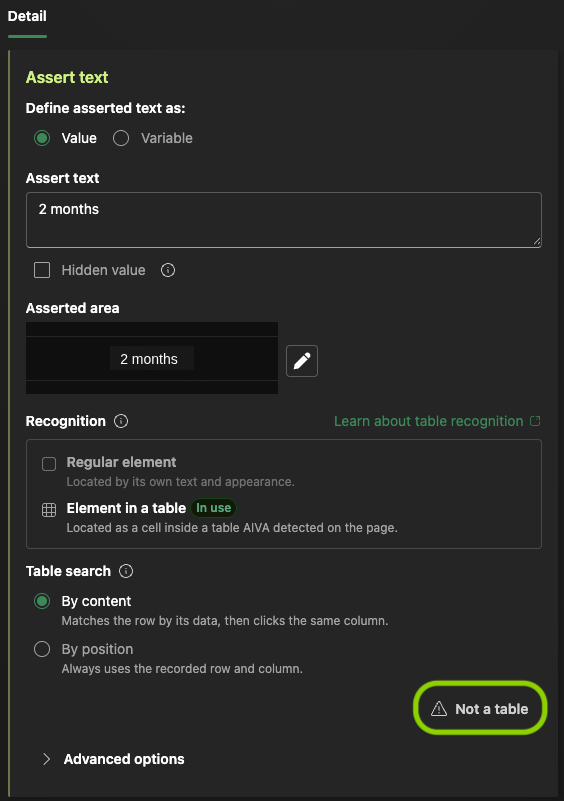
If AIVA recognized the target as a table cell but you want to use regular element recognition instead, select Not a table and confirm the change. AIVA will then find the element using its own text and visual appearance rather than table structure. If you later want to use table recognition for that step again, record the step again inside the table.
Common issues
AIVA did not recognize the element as a table cell
Make sure the target is inside a recognized table and check the Recognition section of Step detail to see how AIVA classified the element.
By position is not available
AIVA must detect either a table header or a table title. Re-record the step while those elements are visible.
AIVA cannot find the correct row
Try switching to By content and use a row that contains distinctive text, such as a unique name, email address, or unique identifier.