Accessing local applications with Gateways
Learn how to use AIVA's Gateway feature to test applications running in local environments, staging servers, or behind corporate networks that aren't publicly accessible.
🤔 What are Gateways?
Gateways enable AIVA to access and test applications running in private networks by establishing a secure connection from your local environment to AIVA's testing infrastructure. This feature uses Tailscale technology to route traffic through your network, allowing AIVA's browsers to reach applications that would otherwise be inaccessible for AIVA.
🎯 When to use Gateways
Use Gateways when you need to test applications that are:
- Running on your local machine (
http://localhost:3000,http://127.0.0.1:8080) - Hosted on private IP addresses (
http://192.168.1.100,http://10.0.0.50) - Using internal domain names (
https://staging.internal.company.com) - Behind corporate firewalls or VPNs
- In private cloud environments or staging servers
- Accessible only from specific network locations
⚙️ How it works
- Create Gateway: You create a Gateway in AIVA and receive a command to run.
- Connect Client: You run the Gateway Client command on a computer in your network.
- Establish Proxy: AIVA sets up a SOCKS5 proxy connection through your network.
- Record and Run Tests: AIVA's browsers use the proxy to access web applications on your local network.
- Keep the Client Running: The Gateway is operational only while the Gateway Client is running and connected to the internet.
Any user in your AIVA workspace can use the Gateway to access any web page accessible from the computer that is running the Gateway Client.
✅ Prerequisites
Before setting up a Gateway, ensure you have:
- Ability to run Docker containers or executables on the machine you want to use for running the Gateway
- Network connectivity from the machine running the Gateway to your target application
- Firewall configuration that allows these connections:
- Outbound
- HTTPS (tcp/443)
- Outbound
📋 Step-by-step setup guide
- Log in to AIVA.
- Navigate to the Configurations → Gateways.
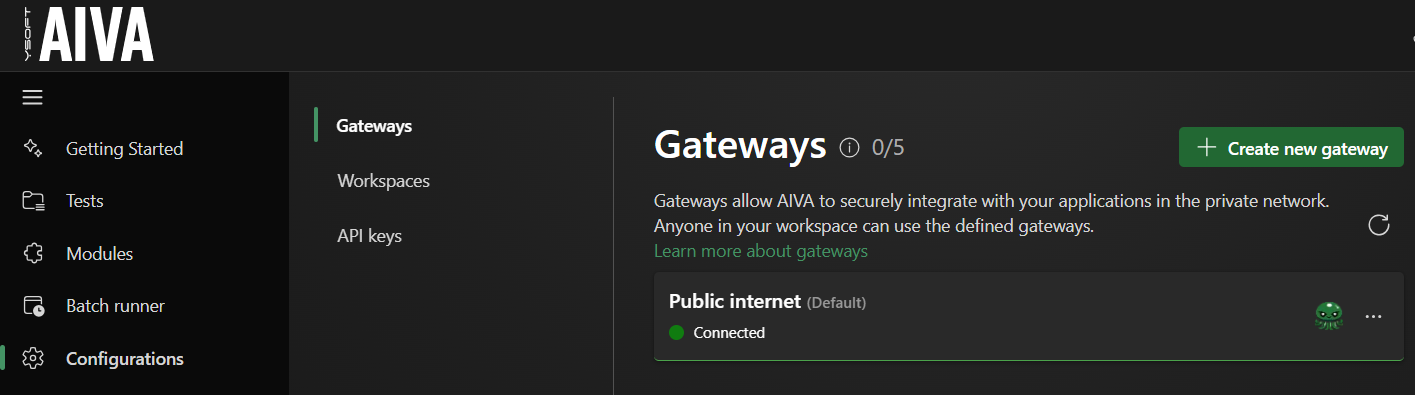
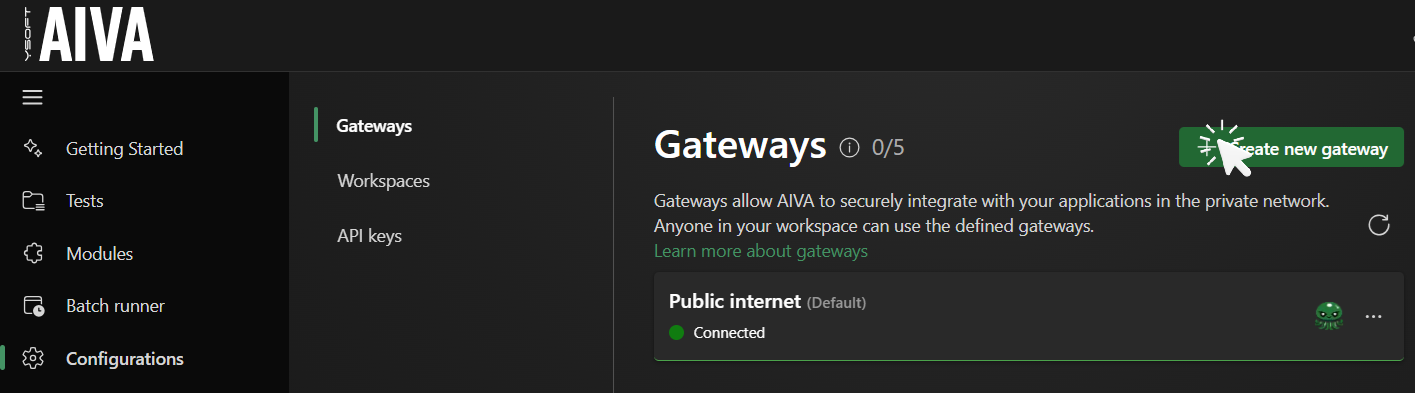
- Click Create New Gateway.
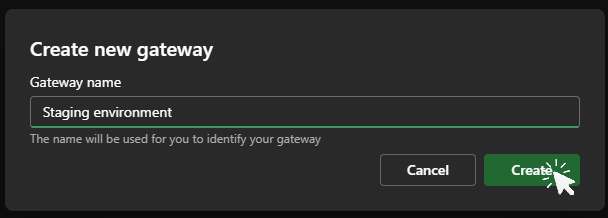
- Enter a descriptive name for your Gateway.
Use descriptive names that help you identify which network or environment each Gateway connects to. Good examples: "Local Dev Machine", "QA Environment", "Staging VPN".
- Click Create Gateway.
- Depending on your platform follow the displayed instructions. Make sure to copy and securely store the provided command - you'll need it to connect the Gateway Client. After running the command, you should see messages confirming connection success.
When using Gateway Client in Docker, you cannot access localhost (eg. https://localhost:3000) in AIVA, because Docker cannot access your localhost. You can bypass this by replacing 'localhost' with 'host.docker.internal', but it is not bulletproof as your application can do redirects to *localhost* and AIVA will again not be able to access it.
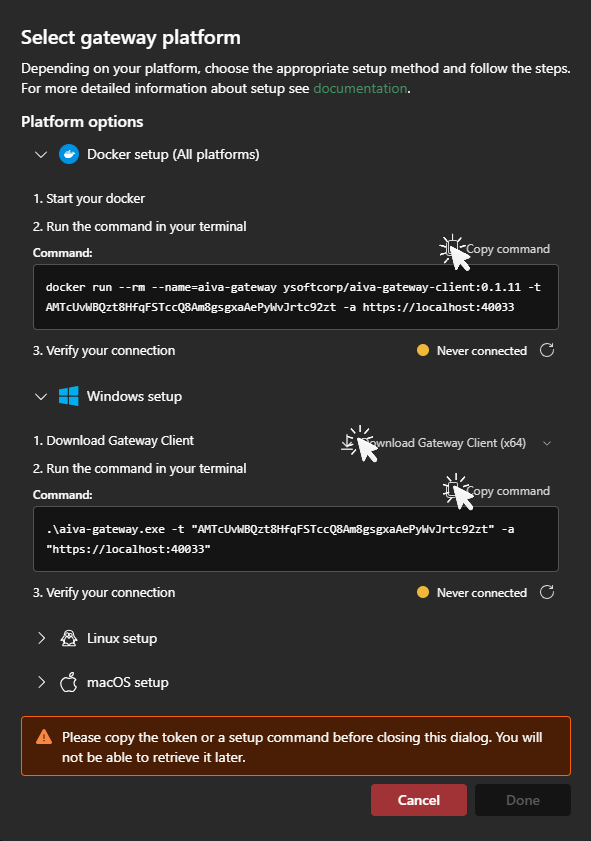
- The created Gateway appears in the list. You can view the setup instructions again by clicking the instruction icon.
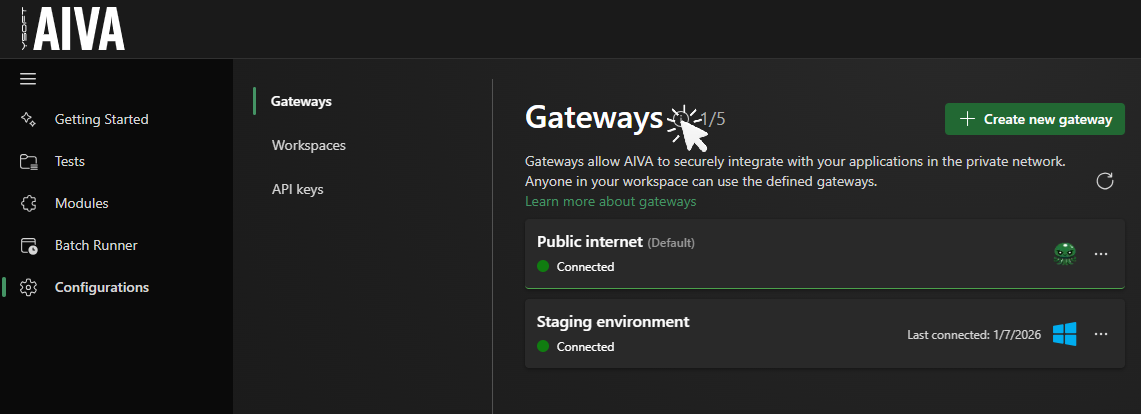
- Test the connection by creating a recording using the new Gateway and thus validating that AIVA can now access the target application.
The Gateway Client must be running for the Gateway to stay connected. Do not exit the Terminal / Command prompt / Docker application. You will need to start the Client again after restarting the computer. You can use the same token repeatedly.
🎛️ Managing multiple Gateways
Gateway sharing across teams
- Gateways are shared across your entire AIVA workspace
- Multiple workspace members can see and use the same Gateway for test execution and recording
- A Gateway can be connected to only one Gateway Client
- When a Gateway connects, others will see the Gateway as "Connected"
Using different Gateways for the same test
- Tests recorded with one Gateway can be executed using a different Gateway
- Be aware that tests will fail if the new Gateway can't reach the tested application
🔍 Troubleshooting Gateway Client
Lost access token
Solutions:
- If you have shared the token with your co-workers, ask them to share it back to you
- Try looking for the command in the Terminal / Command prompt history by pressing the arrow up key
- Roll the token for the Gateway in AIVA by going to the Configurations → Gateways, clicking the three dots next to your Gateway and selecting Roll token. You will then be able to copy a new token.
When you roll token to your Gateway, the original token will be invalidated. Make sure to share the token again with anyone who was using the same Gateway.
Lost Gateway Client file or execution command
Solutions:
- In AIVA, go to the Configurations → Gateways and click the information icon next to the page title. Then select the appropriate platform and download the Gateway Client file or copy any of the commands.
In the execution command, you will need to replace the placeholder {gatewayToken} with the actual token string. If you don't have access to the token string, check the solution above.
"Gateway is already connected" error
Cause: An instance of Gateway Client with the same token is already running.
Solutions:
- Coordinate with your team to see who's using the Gateway
- Make sure the Gateway Client is not already running (check all Docker / Terminal / Command prompt windows)
- Make sure you are using the correct token
- Create a separate Gateway for your use
Cannot start the Gateway Client on Mac or Linux
On Linux and macOS, you need to make the executable file runnable first:
chmod +x aiva-gateway
On Mac, you may also need to allow the client in your security settings if macOS blocks it from running. Follow this Apple guide on opening apps from unknown developers.
The Gateway Client stopped running
Possible causes:
- The computer was restarted
- Key combination Ctrl + C was pressed
- Terminal / Command prompt / Docker application was terminated
Solution
- Based on your platform open the Terminal / Command prompt / Docker application and run the execution command again. If you have lost the Gateway Client command, token or file, see the solutions above.
🔎 Troubleshooting Gateways
Gateway shows "Disconnected"
Possible causes:
- Gateway Client is not running
- Network connectivity issues
- Status has not been updated in AIVA
Solutions:
- Wait up to 10 seconds for the status to update. Try refreshing the page.
- Use the stored execution command to start the Gateway Client again.
- Check that the computer running the Gateway Client is connected to the internet.
If you don't have the execution command or Gateway Client file, check the Troubleshooting Gateway Client section.
Gateway shows "Never Connected"
Possible causes:
- Gateway Client hasn't been started yet
- Network connectivity issues
- Invalid token or address
Solutions:
- Ensure you've started the Gateway Client
- Check your internet connection and firewall settings
Tests or recordings fail with "Cannot Navigate To URL"
Possible causes:
- Gateway Client isn't running or isn't connected properly
- Target application isn't running
- Network routing issues
- Firewall blocking connections
- Wrong URL or port
- You are using Gateway Client in Docker and trying to access localhost address
Solutions:
- Verify the application is accessible from the machine running the Gateway Client
- Test connectivity:
curl http://your-app-urlfrom the machine running the Gateway Client - Check firewall rules and network configuration
- Ensure URLs in tests match exactly (including http/https)
- If using Docker, try replacing 'localhost' with 'host.docker.internal' or switch to using a platform-specific version of the Gateway Client
Cannot start recording or test with the selected Gateway
Possible causes:
- Gateway Client is not properly connected
- The AIVA page is showing outdated Gateway state
Solutions:
- Make sure that the Gateway Client is connected
- Refresh the page so it shows the updated Gateway status
💬 Community support
If you haven't found an answer to the problem you are experiencing with AIVA, join our official AIVA Discord server using this invitation link: https://discord.gg/pqgjvQ46RB
📚 Source code and open source
The Gateway Client will be open source in the future.