Execute AIVA tests from a CI/CD pipeline
AIVA test batches can be executed automatically as part of your CI/CD pipeline. This allows you to run visual end‑to‑end tests on every push, on a schedule, or as a step in your release pipeline.
To start integrating AIVA with your CI/CD pipeline, do the Common setup (required once) and then choose which system you are using, either GitHub CI or GitLab CI.
Both integrations use the same underlying AIVA batch execution API. The main difference is how the batch is triggered and configured in each CI system.
Common setup (required once)
These steps are shared by all CI/CD integrations.
Prerequisites
- At least one test created in AIVA with a label assigned
Create an AIVA API key
Generate an API key according to the How to run tests via API guide.
Store the key securely. You will use it as a secret or protected variable in your CI system.
GitHub CI
To integrate with GitHub, use our AIVA GitHub Action.
Step 1. Add the API key as a repository secret
Use the official GitHub guide to add the AIVA API key to your repository as a secret.
- Name: "AIVA_API_KEY"
- Value: your API key
Step 2. Choose how to select tests
The AIVA GitHub Action can start a batch in three ways — pick whichever fits your workflow.
Option A — Generate a workflow template in AIVA (recommended)
Go to Create a new batch in AIVA, configure it (tests, variables, gateway), and copy the ready-to-use workflow template AIVA generates for it directly into your CI pipeline. Create a batch and select Run using CI/CD from the context menu at the top right of the page.

Option B — Run an existing batch by ID
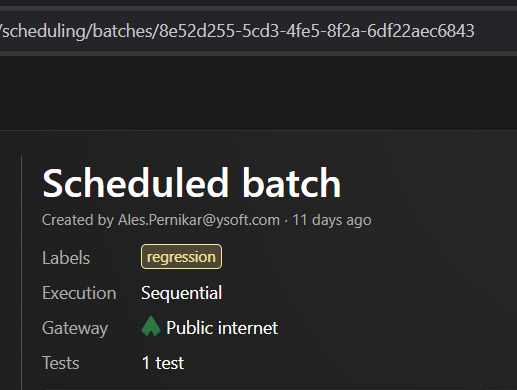
Create a test batch in AIVA and copy its batch ID from the URL in your browser — the workflow then runs that exact batch. See the Run test batches guide for how to create one.
Option C — Run by label
Pass one or more existing labels to the action's labels input (semicolon-separated, e.g. smoke;regression) in the GitHub workflow file (see AIVA GitHub Action). AIVA collects every test that has all of the given labels into a batch and runs it — there's nothing to create ahead of time.
labels and batchId are mutually exclusive. If you provide batchId, maxNumberOfAgents, the variable overrides, and gatewayName are ignored, since those are already fixed on the batch.
Step 3. Create a workflow
Create a file in the .github/workflows/ directory. You can give the file any name (or you can use aiva-integration.yml)
Add the workflow setup to the file
name: Run AIVA Test Batch

on:
  workflow_dispatch:
    inputs:
      BATCH_ID:
        description: "Id of the batch to run"
        type: string
        default: "123e4567-e89b-12d3-a456-426614174000"

jobs:
  aiva_batch_job:
    name: Run AIVA batch (example)
    runs-on: ubuntu-latest

    steps:
      - name: Start AIVA batch
        id: aiva
        uses: aiva-actions/run@v1
        with:
          apiKey: ${{ secrets.AIVA_API_KEY }}
          batchId: ${{ inputs.BATCH_ID }}

      - name: Download Summary template
        id: template-download
        run: wget https://raw.githubusercontent.com/aiva-actions/run/refs/tags/v1/summary-template.hbs
        if: always()

      - name: Generate CTRF summary
        id: summary
        uses: ctrf-io/[email protected]
        with:
          report-path: './batch-ctrf.json'
          template-path: 'summary-template.hbs'
          custom-report: true
        if: always()
More complex example
name: Run AIVA Test Batch in a more complex way

on:
  workflow_dispatch:
    inputs:
      BATCH_NAME:
        description: "(Optional) Name for the test batch"
        type: string
        default: "CI Batch"
      BATCH_ID:
        description: "Id of the batch to run"
        type: string
        default: "123e4567-e89b-12d3-a456-426614174000"
      POLL_PERIOD:
        description: "(Optional) Specifies how long to wait between API calls for the batch status."
        required: false
        type: number
        default: 10

jobs:
  aiva_batch_job:
    name: Run AIVA batch (example)
    runs-on: ubuntu-latest

    steps:
      - name: Start AIVA batch
        id: aiva
        uses: aiva-actions/run@v1
        with:
          apiKey: ${{ secrets.AIVA_API_KEY }}
          batchId: ${{ inputs.BATCH_ID }}
          batchName: ${{ inputs.BATCH_NAME }}
          pollPeriodSeconds: ${{ inputs.POLL_PERIOD }}

      - name: Download Summary template
        id: template-download
        run: wget https://raw.githubusercontent.com/aiva-actions/run/refs/tags/v1/summary-template.hbs
        if: always()

      - name: Generate CTRF summary
        id: summary
        uses: ctrf-io/[email protected]
        with:
          report-path: './batch-ctrf.json'
          template-path: 'summary-template.hbs'
          custom-report: true
        if: always()
After adding the file, commit and push it to GitHub.
Step 3.1 Check formatting of workflow inputs
Below is an example of workflow inputs so you can check the formatting.
Keep in mind that globalVariableOverrides and variableOverridesPerTest are different fields and cannot be mixed. See API Documentation for more details
apiKey:
aiva_aaabbbcccddd... # NOTE: API should be put into Repository secrets, see Step 1.batchName:
CI BatchbatchId:
123e4567-e89b-12d3-a456-426614174000pollPeriodSeconds:
10
Step 4. Run the workflow
- Open your repository on GitHub
- Go to Actions
- Select Run AIVA test batch
- Click Run workflow
- Fill in the workflow inputs (labels or batch ID, depending on which option you used in Step 2)
Now run the workflow. You can watch the ongoing batch execution in the Scheduler.
Step 5. Outputs
After the batch finishes, GitHub uploads the CTRF report as a workflow artifact and writes a test summary directly to the workflow run.
The action also sets the following step outputs you can reference in later steps:
| Output | Description |
|---|---|
batchId | ID of the started test batch |
batchUrl | URL to the batch in the AIVA UI |
success | true if all tests passed, false otherwise |
Example:
- name: Print batch URL
  run: echo "Batch results at ${{ steps.aiva.outputs.batchUrl }}"
GitLab CI
GitLab integration uses the AIVA Runner executed inside a CI job.
Step 1. Add the API key as a hidden and protected variable
In your GitLab project:
- Go to Settings -> CI/CD -> Variables
- Click Add variable in the Project Variables section

- Set:
- Key: AIVA_API_KEY
- Value: your API key
- Select Masked and hidden in Visibility section and check Protect Variable flag. For more context see CI/CD variable security.
- Click Add Variable button to save the new variable
Step 2. Create a GitLab pipeline
#v1 always resolves to the latest 1.x release, you get bug fixes and new features automatically on each
pipeline run. For full reproducibility, pin to a specific release instead (e.g. #v1.1.0). Breaking changes
are always released under a new major version (v2, etc.).
Click Build -> Pipeline editor. This will open a page where you can edit your project's pipeline configuration right away.
Add the following workflow setup to the file.
Don't forget to replace the argument <BATCH_ID> with the ID of a batch you created in AIVA.
stages:
  - test

aiva-test:
  stage: test
  image: node
  script:
    - "npm install github:aiva-actions/runner#v1"
    - npx runner --batch-id '<BATCH_ID>' -k $AIVA_API_KEY -b 'GitLab CI Batch' --result-format 'junit' -f ./junit-report.xml

  artifacts:
    when: always
    paths:
      - junit-report.xml
    reports:
      junit: junit-report.xml
More complex example
spec:
  inputs:
    aiva-batch-id:
      default: "123e4567-e89b-12d3-a456-426614174000"
    aiva-batch-name:
      default: "CI Batch"
---
stages:          # List of stages for jobs, and their order of execution
  - build
  - test

build:
  stage: build
  script:
    - echo "Your build process runs here."

aiva-test:
  stage: test
  image: node
  tags:
    - docker
  script:
    - "npm install github:aiva-actions/runner#v1"
    - npx runner --batch-id '$[[ inputs.aiva-batch-id ]]' -k $AIVA_API_KEY -b '$[[ inputs.aiva-batch-name ]]' --result-format 'junit' -f junit-report.xml

  artifacts:
    when: always
    paths:
      - junit-report.xml
    reports:
      junit: junit-report.xml
After adding the file, click the Commit changes button. GitLab will execute the pipeline right away.
Step 2.1 Check formatting of runner arguments
Below is an example of the runner arguments so you can check the formatting. See API Documentation for more details
apiKey:
aiva_aaabbbcccddd... # NOTE: API should be put into Repository secrets, see Step 1.batchName:
CI BatchbatchId:
123e4567-e89b-12d3-a456-426614174000pollPeriodSeconds:
10
Step 3. See results
Since GitLab executed the pipeline right away, you can click the pipeline run ID above the pipeline configuration editor, and it will take you to the pipelines page. From there you can click the aiva-test job to see logs from the job.
After the job finishes and the JUnit report gets uploaded as artifact, a Tests tab will appear on the page where you can browse the results in a nice web format.
📚 Related guides
- Run test batches — create and run batches manually in the AIVA UI, select tests by label or from the tests table, and choose sequential or parallel execution.
- Organize tests using labels — label your tests so a CI pipeline can select and run them without creating a batch in the UI first.